

Google Classroom
All students have access to Google Classroom for use in school and at home for homework and remote learning.
What is Google Classroom?
Google Classroom is a free Google App that is part of the G Suite for Education.
Teachers use Google Classroom to send announcements, share resources, PowerPoint Presentations, links and activities with the class.
Students can access Google Classroom from home and in school using their personal login. Once logged in students also have access to other G Suite applications such as Docs for Work Processing, Slides for PowerPoint Presentations, Sheets for Spreadsheets, Meet an online video call, used for online lessons with the teacher, as well as a variety of other apps.
G Suite and Google Classroom are free resources that can be accessed from any device connected to the internet ie laptops, desktops, Chromebooks, tablets or mobile phones.
Accessing Google Classroom
Students can access Google Classroom using the mobile apps available (Andriod and iOS), or via a web browser by visiting www.classroom.google.com.
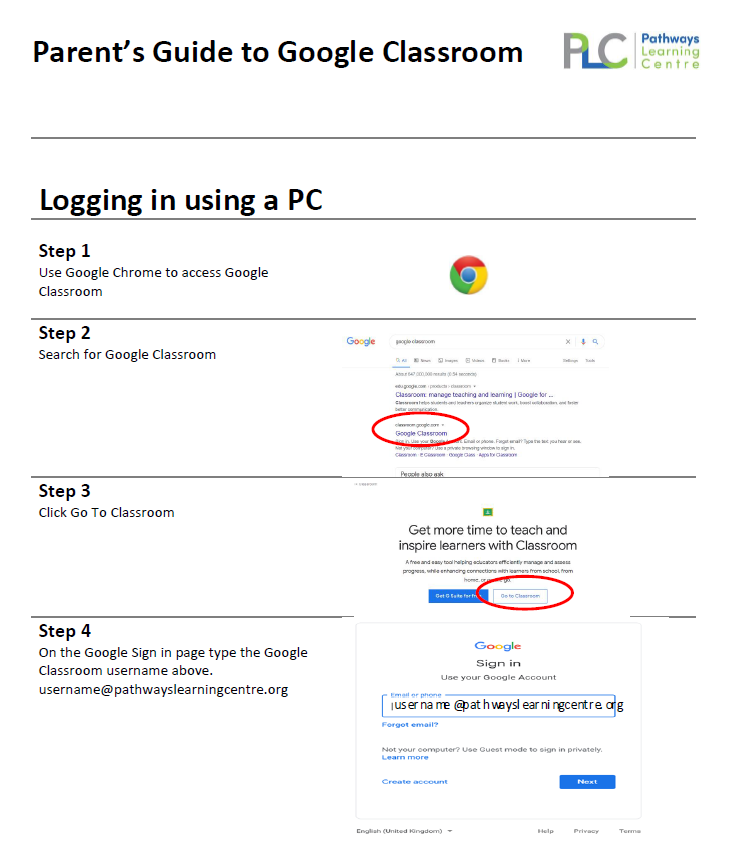
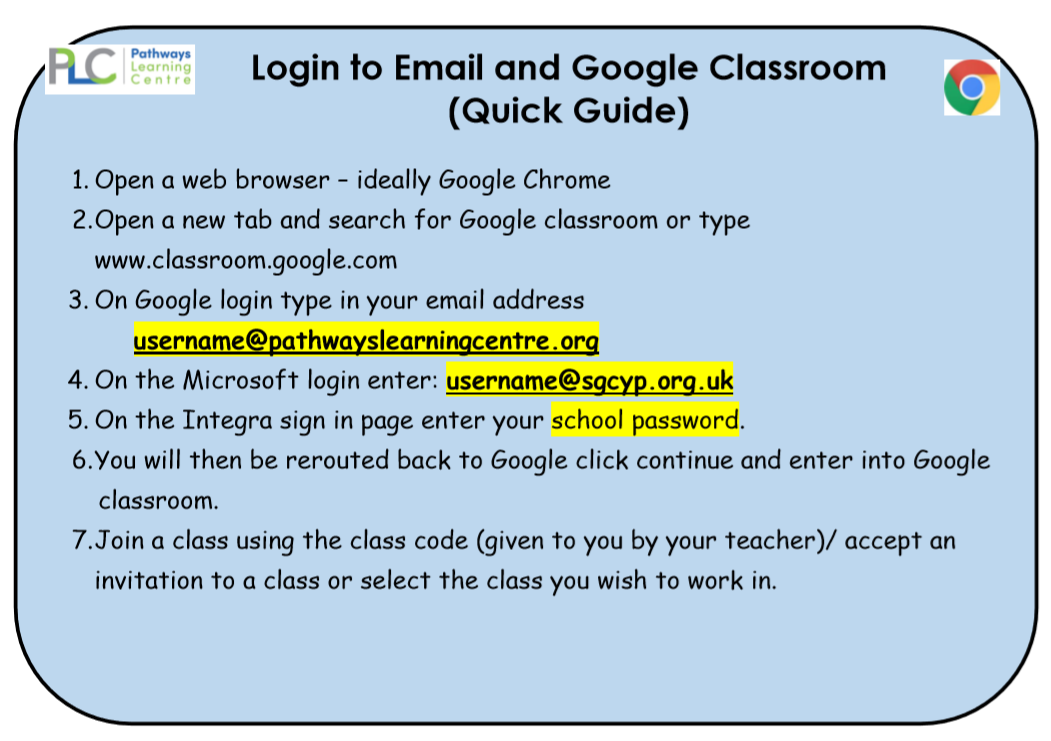
They should sign in using their personal Pathways login @pathwayslearningcentre.org followed by @sgcyp.org.uk (more detailed instructions are in the Parent Guide to Google Classroom.
Once logged in students will see the class overview page, from there they can select a class they are already part of or use the + icon to join a class using a class code.
Class codes are available from the individual teachers or on request to school.
Students also have access to outlook email at http://schoolsmail.sgcyp.org.uk.
Accessing Resources on Google Classroom
If students are accessing Google Classroom from a mobile device they should download the appropriate Google Apps (Google Classroom, Docs, Slides and Google Drive) to be able to make the best use of he shared resources.
When home learning and remote learning is set online it can be submitted directly within Google Classroom online without needing to print.
To open the work go to the Classwork tab.
Open the appropriate post and any attached documents. The simplest way is to complete it, is to open the attachment with the work in and complete the set work. When you are finished, click on the MARK AS DONE button. You can even add your own attachments to your submission such as photos, audio clips, videos etc. Your teacher can then view the work and give you feedback. Where students are learning remotely and through Home Tuition work may be done in conjunction with a video call via Google Meet.
Help Resources
Click on the links below for information, guidance and support with Google Classroom:
Complete Parent’s Guide to Logging In
Quick Login Guide
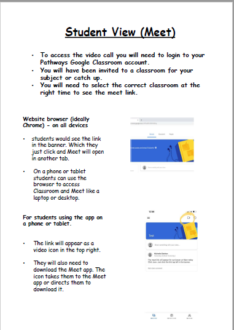
Google Meet Student Guide
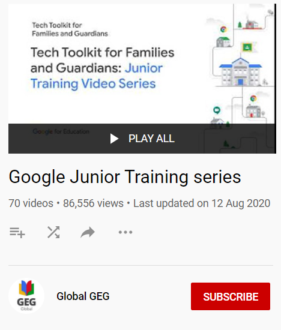
A YouTube series of quick and useful videos to help using Google Classroom
Your Content Goes Here
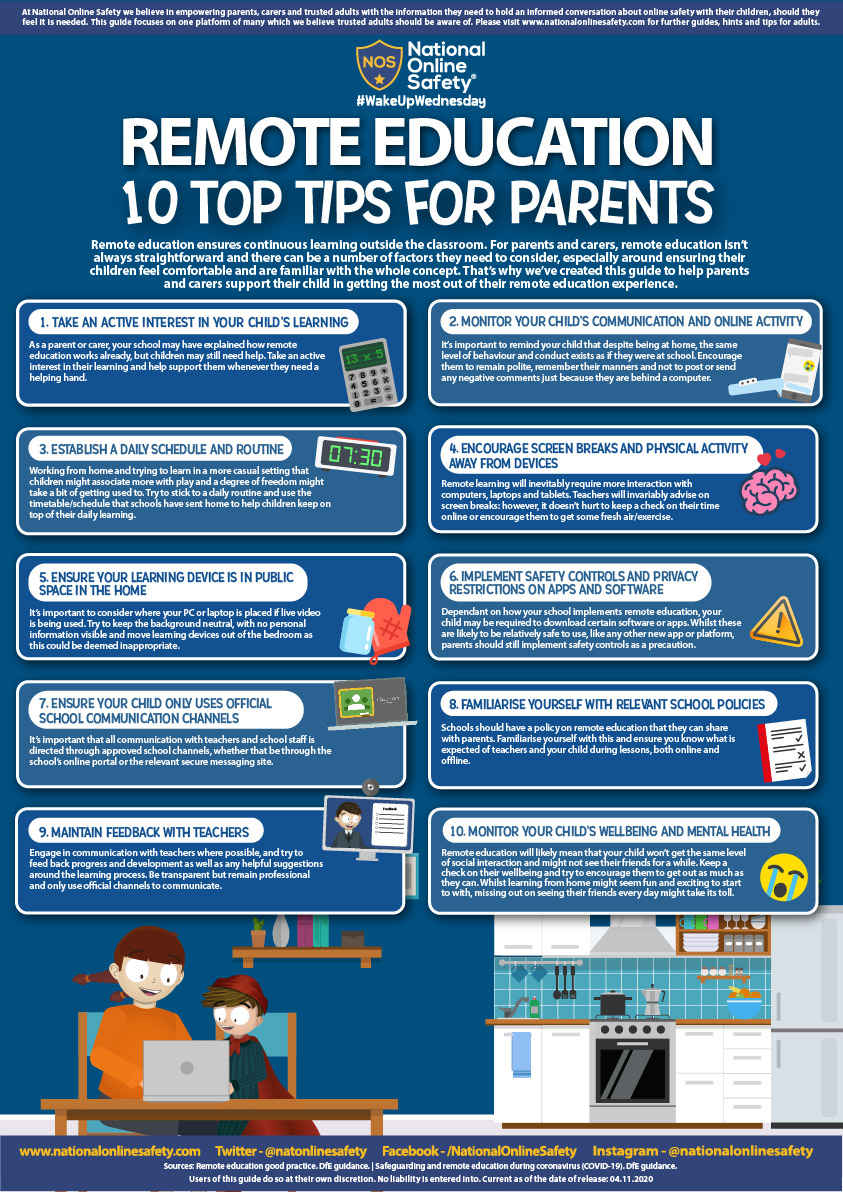
Remote Education – Top 10 Tips for Parents
- Take an active interest in your child’s learning.
- Monitor your child’s communication and online activity.
- Establish a daily schedule and routine.
- Encourage screen breaks and physical activity away from devices.
- Ensure your learning device is in public space in the home.
- Implement safety controls and privacy restrictions on apps and software.
- Ensure your child only uses official school communication channels.
- Familiarise yourself with relevant school policies.
- Maintain feedback with teachers.
- Monitor your child’s wellbeing and mental health.
Your Content Goes Here
Further Help and Support
If you require further help and support please complete the contact form below:
